
Bills and expenses
Expense tracking for bills and receipts, recorded as they arrive
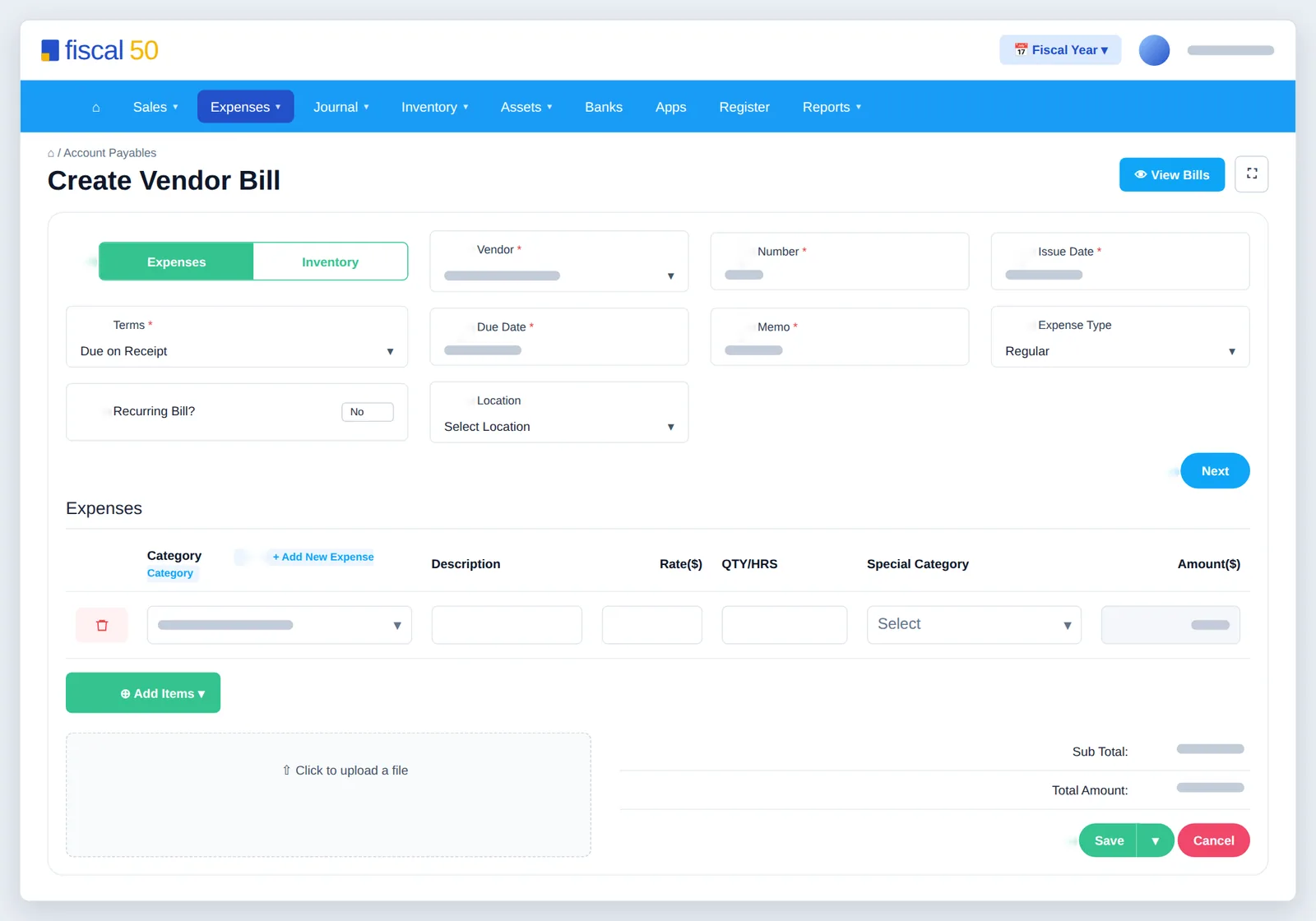
fiscal50 tracks expenses from the vendor bill to the payment. You record bills on one Create Vendor Bill screen — regular expense, capital asset, accrued, deferred, recurring or inventory — with each line posted to the expense account its category is mapped to. Bills and receipts can be uploaded from a computer or phone, or e-mailed in; fiscal50 reads the vendor, date, amount and document number and attaches each document to the matching bill, payment or bank feed transaction. You pay one or more of a vendor's bills in a single payment by cash, check, ACH or card, with discounts, tax withheld, partial payments and overpayments handled, and the Payables Dashboard shows what you owe, what is overdue and your days payables outstanding (DPO).
Bills and expenses
What bills and expenses in fiscal50 does for you
Record what you owe vendors as bills — regular, capital asset, accrued, deferred, recurring or inventory — capture bills and receipts by upload or e-mail, and pay one or several of a vendor's bills in a single payment.
Six kinds of bill on one screen
Regular expense, capital asset, accrued, deferred, recurring and inventory bills are all created on Create Vendor Bill. A bill can be Recurring, Accrued or Deferred, but only one of these at a time.
Accrued and deferred timing
Record an accrued bill as an estimate at month-end and correct the amount when you pay it. A deferred bill holds a prepayment as a prepaid expense and moves an equal share to expense each month.
Recurring bills and schedules
Switch Recurring Bill? to Yes and choose Daily, Weekly, Monthly or Yearly with start and end dates; fiscal50 creates each bill automatically and lists the schedule on Scheduled Bills, where you can view, edit or cancel it.
Bill and receipt capture
Upload PDF, JPG, JPEG, PNG, HEIC or HEIF files (up to 5 MB each), or e-mail them in from your registered address. fiscal50 reads the vendor, date, amount and document number and attaches receipts to payments or bank feed transactions and bills to bill records.
Link what didn't match
For an unmatched document, attach it to an existing payment, or choose Record bill payment & attach receipt to record a payment for a bill from the receipt's details.
Pay several bills in one payment
Tick any number of one vendor's unpaid bills and record one payment by Cash, Check, ACH or Credit/Debit Card, with Discount Applied per bill, Tax Withheld, partial payments and overpayments kept as vendor credit.
Expense categories mapped to accounts
Every sub-category maps to an expense account in your chart of accounts, so each bill or payment line posts to the right account; add categories from the bill with + Add New Expense Category.
Payables Dashboard
Total Vendors Payables, Total Bills, Payment Due and Overdue Payment cards, a monthly DPO chart, Expense and Inventory Payables by vendor, and a Payment Due list with a Payment button on each bill.
How it works
How it works in fiscal50
Enter the bill header
Go to Expenses › Bills › Create Bill, keep Expenses selected, and fill in Vendor, Number, Issue Date, Terms, Due Date and Memo; set Expense Type or Recurring Bill? if needed.
Add the lines
Click Next, then Add Items › Regular Expenses (category, description, amount) or Capital Assets Expenses (category, description, QTY, rate). Attach the vendor's bill with Click to upload a file.
Save the bill
Click Save, or use the arrow for Make Payment or Save & New. The bill appears on the Bills screen, ready to pay.
Capture the receipt
Upload the receipt on Expenses › Bill & Receipt Uploads or e-mail it in; fiscal50 matches it, or you link it from the Action column.
Pay the vendor
On Expenses › Payments click + Make Vendor Payment, choose the vendor, date, method and bank, tick the bills, then Save and Confirm.
In your books
What it posts
Each bill line posts to the expense account its category is mapped to; paying the bill clears the payable.
Example amounts.
| Account | Debit | Credit |
|---|---|---|
| Office supplies | 450.00 | |
| Accounts Payable | 450.00 | |
| Total | 450.00 | 450.00 |
| Account | Debit | Credit |
|---|---|---|
| Accounts Payable | 450.00 | |
| Bank | 450.00 | |
| Total | 450.00 | 450.00 |
Capital asset bills debit the fixed asset, inventory bills debit Inventory, and deferred bills debit Prepaid Expenses and move to the expense month by month.
Can a bill be both recurring and deferred?
No. A bill can be recurring, accrued or deferred — only one at a time.
How do I correct an accrued bill when the real bill arrives?
Pay the accrued bill and adjust the amount when you record the payment so it matches the actual bill. fiscal50 adjusts the expense for any difference.
Which file formats can I upload, and how large?
PDF, JPG, JPEG, PNG, HEIC and HEIF. The limit is 5 MB per file when uploading, and 5 MB per e-mail when e-mailing.
Can I pay several bills at once?
Yes, for one vendor. Tick each of that vendor's bills on the payment screen and fiscal50 applies the payment to each bill and records it as one payment from your bank. Pay a second vendor separately.
What happens if I pay more than the bill?
The extra shows in Credits/Over Payment and stays as a credit with the vendor, applied to later bills until it is used up.
Related
Works well with
Bill and receipt uploads
Upload or e-mail bills and receipts; fiscal50 reads them and files each one.
Read moreVendor and payee management
Vendors and payees in one place: dashboards, advances and 1099 tracking.
Read moreCheck printing
Print vendor checks on standard check stock, one or many at a time.
Read more1099 tracking
Track vendor payments for 1099-NEC and catch missing details early.
Read moreMake this the last month you do bookkeeping by hand.
Start free. Connect a bank. Watch the agents go to work.