
Banks to Books
Banks to Books: automated bookkeeping for every bank transaction
Banks to Books is the fiscal50 workflow that records your bank and credit card transactions in your books. You connect accounts through Plaid (or add them manually and upload transaction files), and each transaction waits as Pending on the Deposits or Withdrawals tab with an AI recommendation already selected, such as an Income Entry, an Expense Entry or a payment against an existing invoice or bill. You confirm or change the recommendation, open its explanation to see why the AI chose it, and post one transaction, a page, or a queued batch. Anything posted can be corrected later from the Recorded to fiscal50 tab, one transaction at a time or in bulk with Editable Mode.
See it work
Watch a transaction go from bank feed to ledger
Sync, recommend with a reason, post when you confirm. The same loop runs on every bank and card account you connect.
 Banks to Books
What Banks to Books does for you
Banks to Books turns your bank feed into your books: connect bank and credit card accounts, accept or adjust the AI's recommendation for each transaction, and post it.
Connect accounts with Plaid or by file
Sync Bank / Credit Card links bank and credit card accounts through Plaid, and fiscal50 creates a Chart of Accounts entry for each one. Accounts that aren't on Plaid can be added manually and fed with a Web Connect file, the bank's Excel export, a QuickBooks IIF export or the fiscal50 CSV.
AI recommendation on every transaction
For every deposit and withdrawal, the AI suggests the customer or vendor, the income service or expense category, the matching invoice or bill, and the account. Entry suggestions come from how you recorded similar transactions before; invoice, bill and check matches compare the transaction's date, description and amount.
See why the AI chose it
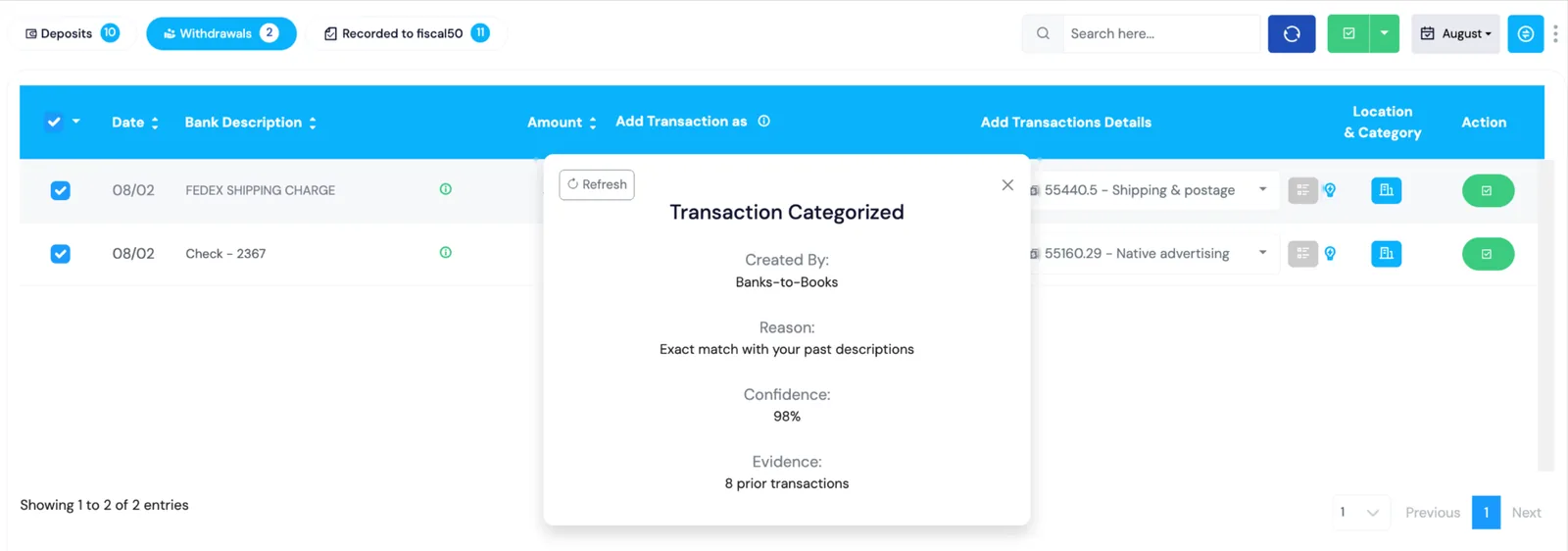
Every recommendation comes with its explanation: the reason, a confidence score and the evidence behind it, such as 8 prior transactions. Check it before you override a suggestion.
Learns from your corrections
Every recording and every changed recommendation is a signal the engine learns from in the background. Click Refresh to re-run the AI so a correction on one transaction reaches similar pending transactions.
Bulk work: multiple-apply, splits and batch posting
The multiple-apply button sets one transaction type and category or account on all selected rows. A single transaction can be split across several accounts or categories, and you can post one row, the whole page, or queue the selection for the next batch.
Credit cards work the same way
A credit card is another account on the Banks tab, with Expenses and Refund/Other Deposits tabs. Card payments made from your bank are detected and marked Auto Record, so they aren't recorded twice.
Fix posted transactions in bulk
On the Recorded to fiscal50 tab, Editable Mode lets you filter, assign a new category or account to many transactions, and click Update Bookkeeping. Edit Transaction changes one item's entry type, category, account, split lines, location, special category or date.
Two kinds of delete
Delete Transaction removes the entry from your books and returns the transaction to Pending so you can record it again. Delete From Bank Feed removes a duplicate or test entry from fiscal50 completely.
How it works
How it works in fiscal50
Connect or add accounts
Click Sync Bank / Credit Card to link an account through Plaid, or use the down arrow and choose Add Bank Account, then Upload Bank Transactions. fiscal50 creates the Chart of Accounts entries.
Pick the month
On the Banks tab, choose All Months or a specific month in the Pending Transactions dropdown, or click the calendar button for a month summary. Transactions arrive as Pending deposits and withdrawals.
Review and categorize
On the Deposits and Withdrawals tabs, check the option pre-selected under Add Transaction As and the details under Add Transaction Details. Check the explanation when unsure, change the row if needed, then click Refresh.
Post
Click the green Post button on a row, post all selected transactions on the page with the top-right Post button, or choose Queue for next batch. Posted transactions move to Recorded to fiscal50.
Correct if needed
On the Recorded to fiscal50 tab, use Editable Mode or Edit Transaction to modify, Delete Transaction to send an item back to Pending, or Delete From Bank Feed to remove it.
In your books
What it posts
Nothing posts until you click Post. Then each transaction becomes a balanced entry against the bank or card account.
Example amounts.
| Account | Debit | Credit |
|---|---|---|
| Business checking | 4,057.91 | |
| Bathroom Renovation (income) | 4,057.91 | |
| Total | 4,057.91 | 4,057.91 |
| Account | Debit | Credit |
|---|---|---|
| Shipping & postage | 169.65 | |
| Business checking | 169.65 | |
| Total | 169.65 | 169.65 |
A payment for an invoice or bill credits Accounts Receivable or debits Accounts Payable instead. Reconcile Check / ACH clears an outstanding item without a new entry.
How do I categorize my bank transactions?
Click Banks, pick a month (or All Months) in the Pending Transactions dropdown and open the Deposits and Withdrawals tabs. On each row, check the AI-recommended option in Add Transaction As and the details in Add Transaction Details, adjust if needed, then click the green Post. Fix anything posted later from the Recorded to fiscal50 tab.
Is the AI recommendation posted automatically?
No. Recommendations are pre-selected on each row, but nothing is recorded until you click Post, post the page, or queue a batch.
Can I change the recommended option?
Yes. Pick any option in Add Transaction As; the AI learns from your choice. Click Refresh so similar pending transactions pick up the correction.
How far back will my bank transactions sync?
New transactions sync from the point you link the account with Plaid. Bring earlier periods in with Upload Bank Transactions (Web Connect, the bank's Excel export, QuickBooks IIF or the fiscal50 CSV), and avoid overlapping periods so you don't get duplicates.
What is the difference between Delete Transaction and Delete From Bank Feed?
Delete Transaction removes the recording and returns the transaction to Pending so it can be recorded again. Delete From Bank Feed removes it from fiscal50 completely; it never reappears as Pending and can't be recorded again.
Do credit cards work like bank accounts in Banks to Books?
Yes. A credit card is another account on the Banks tab with the same transaction list, AI recommendations, options, splits, posting and corrections. Only the tab names differ (Expenses and Refund/Other Deposits), and card payments from your bank are marked Auto Record.
Related
Works well with
Bank reconciliation
Auto-reconciliation that predicts each ending balance and reconciles every account month after month.
Read moreIntegrations
Plaid bank feeds, Stripe payments and sync, Gusto payroll, QuickBooks and bank file imports.
Read moreBills and expenses
Vendor bills, emailed receipts, scheduled bills and vendor payments.
Read moreInvoicing
Invoices, recurring schedules, retainers, deferred income and customer payments.
Read moreMake this the last month you do bookkeeping by hand.
Start free. Connect a bank. Watch the agents go to work.